
Change images
Changing your images
Upload your own photo, reframe it, mark your logo, and create or retouch images with AI.
Click any image on your page and its options bar appears. The purple button opens the gallery; the rest of the actions use no AI.

- 1Change image: opens the gallery with your photos, AI ones, upload a file or ask for a retouch.
- 2Upload: a photo from your computer. You can also copy an image and paste it with Ctrl/⌘+V.
- 3Alt/SEO: describe what's in the photo. It helps Google and anyone using a screen reader.
- 4Framing: nine positions to choose which part of the photo stays visible when the space is narrower.
On the second row of that same bar you can also:
- Is logo — marks that image as your logo so it's treated as one.
- Edit block — opens the block containing the image, in case you meant to change the text or background around it.
- Remove — takes the image out of that section. Undo brings it back.
The gallery: six ways to change an image
Hitting Change image opens this window. At the top are the options that cost nothing; below, the ones that use your plan's AI images.
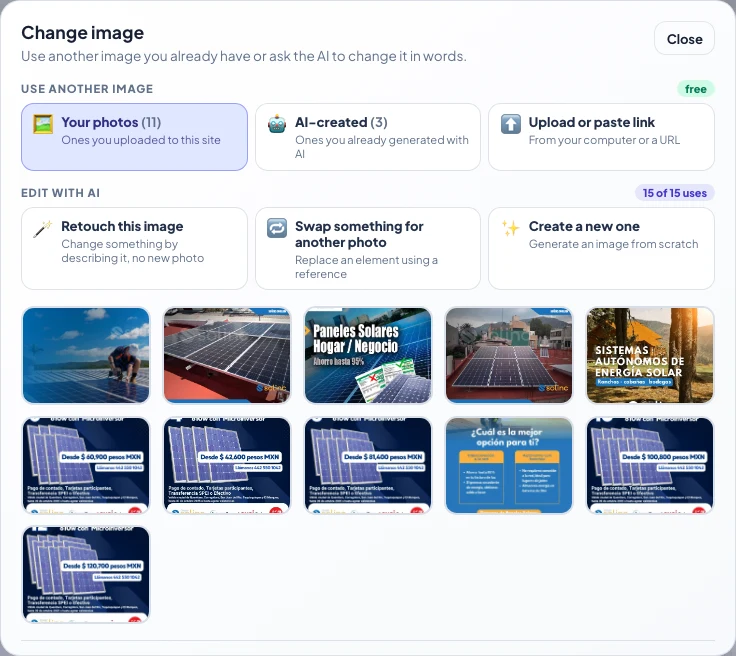
- 1Free: Your photos, ones you already created with AI, or upload a file / paste a link.
- 2Edit with AI: retouch, swap an element or create a new image. Top right shows how many uses you have left.
- 3Click a thumbnail to use it. The CURRENT badge marks the one on your page now.
Upload from your computer or a link
Pick Upload or paste link. It accepts PNG, JPG, WEBP and GIF. The new image replaces the one you had selected.
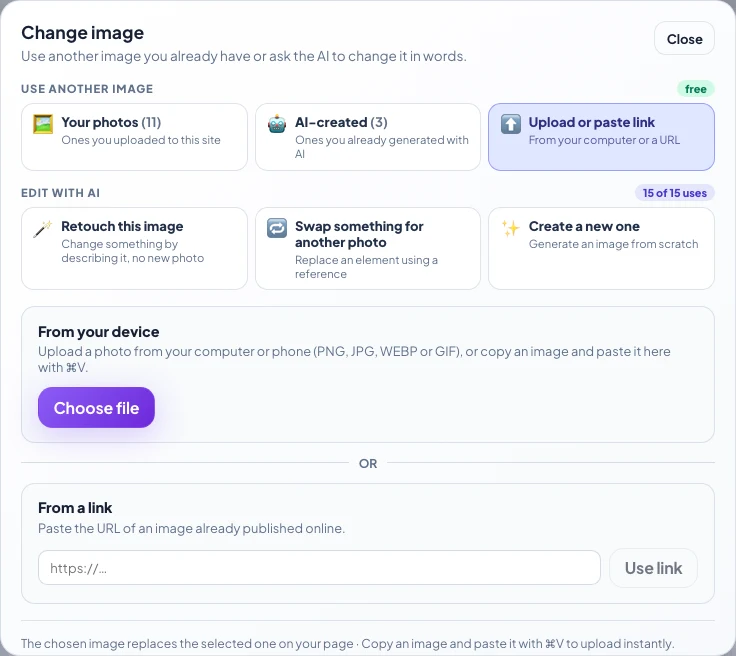
- 1This tab: from your computer, your phone or a web address.
- 2Choose file, or paste a copied image with Ctrl/⌘+V.
- 3If the photo is already online, paste its address and hit Use link.
Retouch this image
You describe the change in your own words and it's applied to the current photo, without touching the rest: framing, light, colours and style. It comes with ready-made suggestions (remove the background, make it brighter, remove signs).
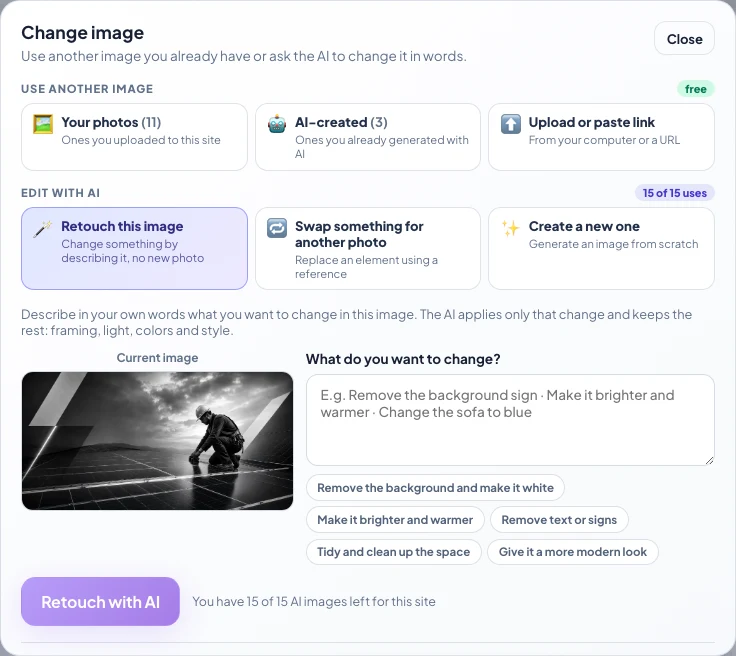
- 1Pick Retouch this image. You don't need another photo.
- 2Write the change, or tap one of the suggestions below.
- 3Retouch with AI. Beside it you see how many AI images you have left on this page.
Swap something for another photo
You upload a reference (a person, a product, a dish) and the AI replaces that element, matching the light and perspective of the original photo.
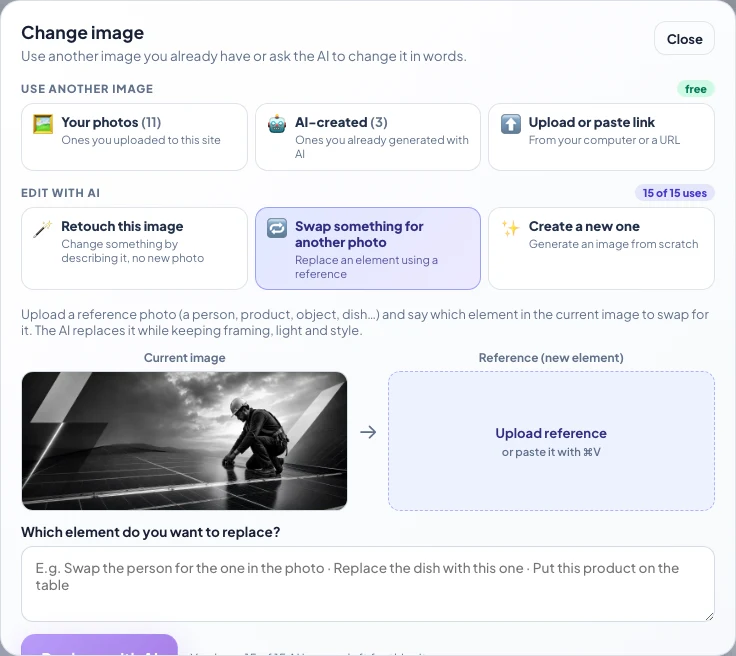
- 1Pick Swap something for another photo.
- 2Upload the reference or paste it with Ctrl/⌘+V. That's the new piece.
- 3Say which element should be replaced, for example “change the lamp for this product”.
- 4Replace with AI applies the change on the image on your page.
Create a new image
Generates an image from scratch based on your description. If you only wanted to adjust the current one, use Retouch this image: it stays closer to the original and costs the same.
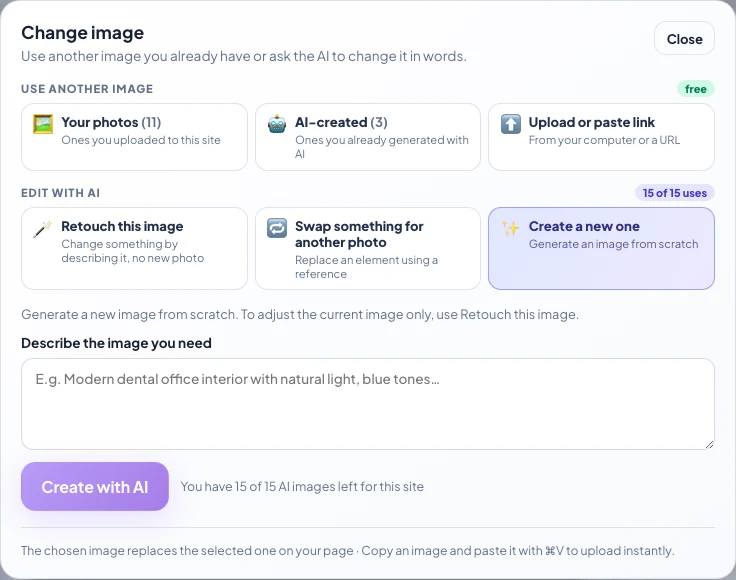
- 1Create a new one: generates from scratch, it doesn't start from the current photo.
- 2Describe the scene in detail: place, light, colours, what's in view.
- 3Create with AI. The new image replaces the one selected on your page.
How much you can use
In the gallery, each AI option shows how many uses you have left (for example "15 of 15 uses") and the running total for that page. Uploading your own photos, reframing, describing or marking the logo costs nothing. Ones you already generated appear under AI-created and you reuse them without paying again.
If you run out, you can buy more credits from the gallery itself or from the Edit tab.