
CreateWebToday logo
CreateWebToday.com
How it worksPricing
Log inCreate my site for freeCreate free
CreateWebToday logo
CreateWebToday.com

What most people look for

  • Published pagesSee how yours can look→
  • Design stylesHow yours can look→
  • How it worksThree steps, ready today→
  • PricingOne clear plan, everything included→

Learn more

  • Everything includedDomain, hosting, SSL and editor→
  • Who it's forLocal businesses and professionals→
  • CompareVs. an agency or doing it yourself→
  • Why a websiteWhat your business gains by having one→
  • FAQAnswers before you decide→
  • Help centerStep-by-step illustrated guides→

Account

  • Log inAccess your account→
Create my site for free

Build free, no card · From $29/mo when you publish

  1. Home
  2. Help center
  3. Editing text and buttons
TopicsEdit text
Start here

Before you start

Getting started

Create and publish your site

1Create your page2Choose your design3Choose your domain4Choose your plan5Pay and publish

Editing your site

Your dashboardEdit textChange imagesEdit with AIVersions and publishingChange the designSEOMetricsMy siteMy business

Topics

Start here

Before you start

Getting started

Create and publish your site

1Create your page2Choose your design3Choose your domain4Choose your plan5Pay and publish

Editing your site

Your dashboardEdit textChange imagesEdit with AIVersions and publishingChange the designSEOMetricsMy siteMy business

Can't find what you're looking for?

Write to us and we'll reply during business hours.

Go to support

Edit text

Editing text and buttons

Change any word on your site with one click. Bold, size, colour and links.

Changing text is the most common thing you'll do and the simplest: click on it and type. There's no menu to find and no special mode to enter. And it uses none of your plan's AI allowance — text is yours to change, as often as you like.

Under the toolbar you always have the four ways to select something:

  • Click a text to edit it.
  • Click a section's background to select the whole section.
  • Shift + click to grab several blocks at once.
  • Drag across the text to edit just part of it — to bold two words, for instance.

The editing panel

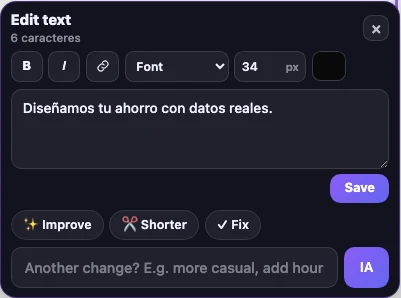
Selecting text opens a panel titled Edit text. You can type straight on the page or in the panel's box — same thing. It gives you:
createwebtoday.com/dashboard
Edit text panel: bold, italic, link, font, size, colour, the text box and AI actions1234
  1. 1Bold, italic and link.
  2. 2Font, size in pixels and colour for this text.
  3. 3Type here or straight on the page: it's the same.
  4. 4AI shortcuts: improve the wording, shorten it or fix it.
  • B for bold and I for italic.
  • Link — turns the text into a link. It accepts a web address, a WhatsApp number, a phone number, or a section of your own page.
  • Font — default, sans-serif, serif, rounded, elegant or monospaced.
  • Size in pixels and text colour.

Below the box there are three AI shortcuts — Improve, Shorter and Fix — and a box to ask for another change in your own words. They're one-off tweaks: they don't use your full-page edit allowance.
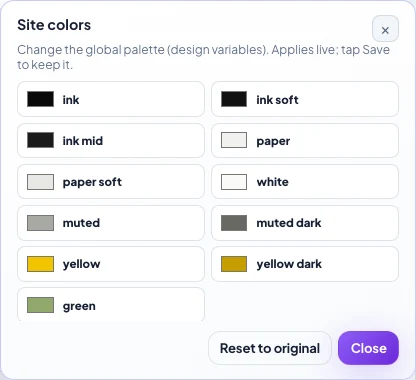
To change the colours of the WHOLE site

The panel's colour applies to that one piece of text. If you want to change the page's whole palette, use the Theme button in the toolbar: it changes every colour at once, and it also uses no AI.
createwebtoday.com/dashboard
Site colours panel: the global palette list and the button to restore originals

Each row is a colour in your palette. Changing one applies live across the whole page; Reset to original brings back the design's colours.

It saves itself

You don't need to hit "Save" after every word: the editor saves on its own and tells you at the top right (Saving… → All saved). The Save button is there for when you want to force it.

If you get something wrong, Undo reverts the last change, and you can always go back to an earlier version from the Edit tab.

Check how it looks on a phone

A headline that looks great on your computer can break awkwardly on a phone. After changing longer text, hit Mobile in the toolbar and take a look: that's how most of your visitors will see it.

Updated August 2026

Next topicChanging your images
Webi, the CreateWebToday mascot
CreateWebToday.com

Your professional website, ready today — in a single link.

Product

  • Pricing
  • Create my site for free
  • Log in

Legal

  • Terms and Conditions
  • Privacy Notice
  • Cookie Policy

Support

  • Help center
  • Support
  • FAQ
  • admin@createwebtoday.com

Españolcreatuwebhoy.com

© 2026 CreateWebToday. All rights reserved.

Prices in USD · No hidden fees · Email support in English.