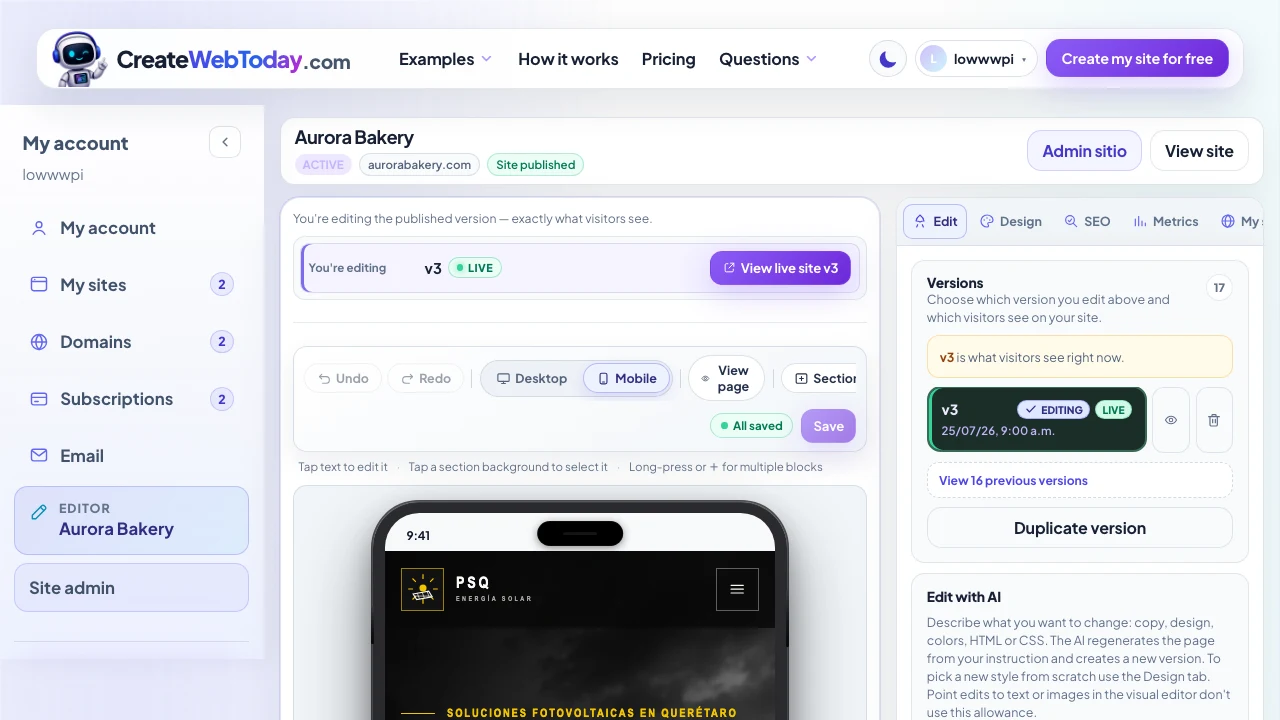
Your dashboard
Your dashboard explained
What each tab does — Edit, Design, SEO, Stats and My site — and where everything lives.
Your dashboard has two halves. On the left, your site as it really looks, with the editing toolbar above it. On the right, a rail of tabs where everything else lives: versions, design, SEO, metrics and your site's details.
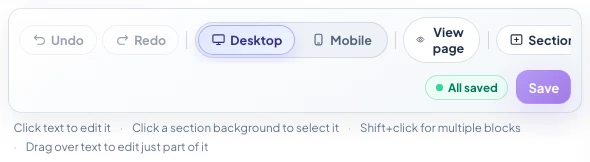
From left to right, the toolbar has:
- Undo and Redo — for any change you make in the editor.
- Desktop and Mobile — switch the view to check how it looks on a phone (390 px wide). More than half your visitors will arrive that way.
- View page — opens your site in a new tab, without the editor on top.
- Section — adds a brand-new section written by AI in your site's style.
- Theme — changes the colours of the whole page. Uses no AI allowance.
To the right of the toolbar you'll see the save state: All saved, Unsaved or Saving…
The rail tabs
There are six, and they scroll sideways if they don't all fit.
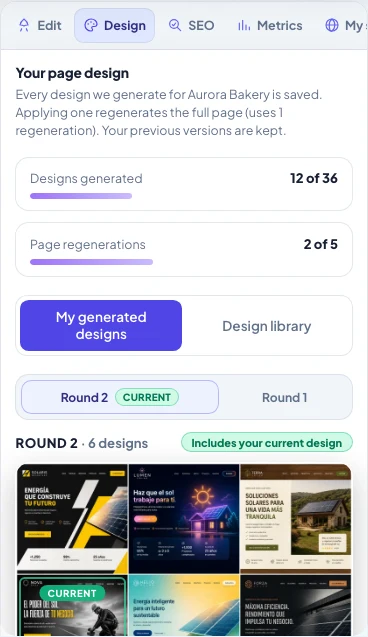
- Edit — your versions and the box for asking AI for changes. This is the one that opens by default.
- Design — rounds, the library, and regenerating the page in another style.
- SEO — Google title, social sharing image, favicon and alt text.
- Metrics — visits and WhatsApp clicks, once you have a published version.
- My site — domain, publishing and email at your domain.
- My business — the record (name, trade, contact) the AI uses when regenerating.
Each tab has its own guide further down this menu: Design, SEO, Metrics, My site and My business.
Always check on mobile
The Mobile button in the toolbar switches the view to 390 px wide, roughly a phone. That's how most of your visitors will arrive, so it's worth a look before you publish.