
Versions and publishing
Versions and publishing
Every change creates a version. Which one visitors see, how to publish, and how to go back.
Your site isn't a single copy: it has versions. Every time the AI regenerates your page or you apply a new design, another version is saved, and the earlier ones are never deleted. That's what lets you experiment without fear.
Two ideas worth keeping apart:
- The one you're editing — what you're working on in the dashboard.
- The one visitors see — the published one, marked LIVE.
Usually they're the same, and that's when the notice above the editor tells you you're editing what's already live. When you're working on a draft, it looks like this:
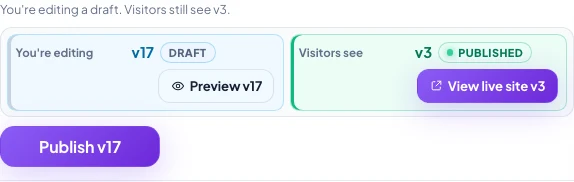
- 1The version you're editing. DRAFT means nobody sees it yet.
- 2What your visitors see right now, marked PUBLISHED.
- 3Publish switches which of the two people see. It's instant.
The version list
It's in the Edit tab. Each row is a version with its date and labels (EDITING, LIVE). From there you can:
- Choose which one you edit — click any version and the editor loads it.
- View (the eye) — open it in a new tab without publishing it.
- Publish — make it the one your visitors see.
- Delete — remove a version you no longer want.
- Duplicate version — make a copy to experiment on without touching the live one.
Publishing
Publishing is instant: the moment you press it, that version is what's served on your domain. There's nothing to wait for and nothing to reconfigure.
A visitor who already had your page open may keep seeing the previous one for a while, until their browser asks for it again. A refresh sorts it out.
Going back
There's no "unpublish", and there doesn't need to be: to go back to how it was, publish the earlier version. It's in the same list, with its date. Same operation, same speed.