
CreateWebToday logo
CreateWebToday.com
How it worksPricing
Log inCreate my site for freeCreate free
CreateWebToday logo
CreateWebToday.com

What most people look for

  • Published pagesSee how yours can look→
  • Design stylesHow yours can look→
  • How it worksThree steps, ready today→
  • PricingOne clear plan, everything included→

Learn more

  • Everything includedDomain, hosting, SSL and editor→
  • Who it's forLocal businesses and professionals→
  • CompareVs. an agency or doing it yourself→
  • Why a websiteWhat your business gains by having one→
  • FAQAnswers before you decide→
  • Help centerStep-by-step illustrated guides→

Account

  • Log inAccess your account→
Create my site for free

Build free, no card · From $29/mo when you publish

  1. Home
  2. Help center
  3. Editing with AI
TopicsEdit with AI
Start here

Before you start

Getting started

Create and publish your site

1Create your page2Choose your design3Choose your domain4Choose your plan5Pay and publish

Editing your site

Your dashboardEdit textChange imagesEdit with AIVersions and publishingChange the designSEOMetricsMy siteMy business

Topics

Start here

Before you start

Getting started

Create and publish your site

1Create your page2Choose your design3Choose your domain4Choose your plan5Pay and publish

Editing your site

Your dashboardEdit textChange imagesEdit with AIVersions and publishingChange the designSEOMetricsMy siteMy business

Can't find what you're looking for?

Write to us and we'll reply during business hours.

Go to support

Edit with AI

Editing with AI

Ask for changes in your own words: one block, a whole new section, or the entire page.

When the change you want is bigger than fixing a word, you ask the AI for it in writing. There are three scopes, and it's worth knowing which to use, because they don't cost the same.

1 · A single block

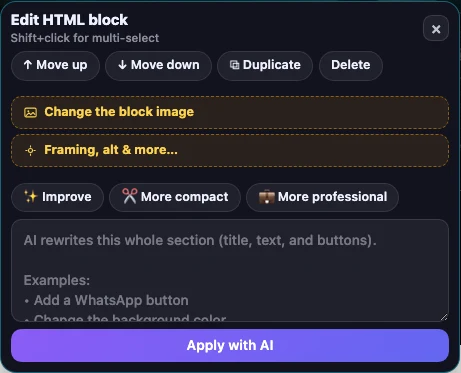
Select a section (click its background) and the panel opens as Edit HTML block. Write what you want and hit Apply with AI: only that block changes, the rest of the page stays exactly as it was.
createwebtoday.com/dashboard
Edit HTML block panel: move, duplicate, delete, AI shortcuts and the box to describe the change123
  1. 1Move the block, duplicate it or delete it. None of this uses AI.
  2. 2Shortcuts: improve it, make it more compact, or more professional.
  3. 3Or describe it in your own words and apply with AI.

In that same panel, with no AI involved, you can also:

  • ↑ Up and ↓ Down — move the block.
  • ⧉ Duplicate — create a copy right below.
  • Delete — remove it. Undo brings it back.
  • + Add blocks — tap other sections to add them to the selection and change them together.

Moving, duplicating and deleting is free

Reordering your page uses no AI. If all you want is your services above the "About us", use the arrows.

2 · A brand-new section

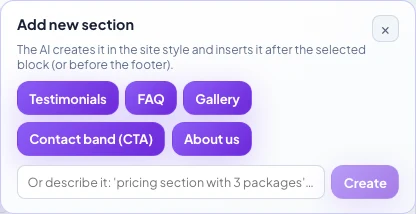
The Section button in the toolbar creates a section that didn't exist, in your site's style. Pick one of the suggestions or describe your own: "pricing section with 3 packages".
createwebtoday.com/dashboard
Add a new section panel with Testimonials, FAQ, Gallery, Contact band and About us

The section is created in your site's style and inserted after the block you have selected (or before the footer, if there isn't one).

3 · The whole page

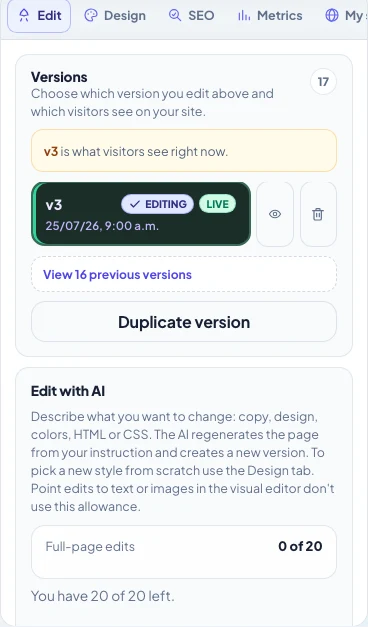
In the rail's Edit tab there's the Edit with AI box. Here the AI regenerates the entire page from your instruction and creates a new version. It's the most powerful scope and the one that does use your full-page edit allowance.
createwebtoday.com/dashboard
Edit tab in the rail: versions, Edit with AI and the remaining-edits counter

Below the box you can see how many you have left (for example "0 of 20"). Use it for deep changes: a different tone throughout, more breathing room between sections, a different way of ordering the content.

Don't use this to change design

If what you want is a different visual style from scratch, the Design tab is cheaper and gives better results: there you pick from designs made for your business. "Edit with AI" rewrites the page while keeping the look it already has.

How to ask so it comes out well

  • Say what, not how. "Make it clearer that we handle emergencies" works better than "add a red div at the top".
  • One change at a time. Five instructions in one go tend to come out half-done; one by one they come out better.
  • Say where. "In the services section…" narrows the work and avoids surprises elsewhere.

Updated August 2026

Next topicVersions and publishing
Webi, the CreateWebToday mascot
CreateWebToday.com

Your professional website, ready today — in a single link.

Product

  • Pricing
  • Create my site for free
  • Log in

Legal

  • Terms and Conditions
  • Privacy Notice
  • Cookie Policy

Support

  • Help center
  • Support
  • FAQ
  • admin@createwebtoday.com

Españolcreatuwebhoy.com

© 2026 CreateWebToday. All rights reserved.

Prices in USD · No hidden fees · Email support in English.